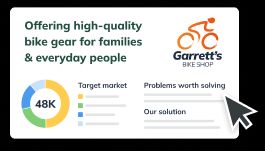
Sample Business Plan Gallery
Browse our library of over 550 free business plan examples to kickstart your own plan.
Browse our library of over 550 free business plan examples.

How to Write a Business Plan
Step-by-step guide to establish the foundation of your business quickly and efficiently.
Step-by-step guide to establish the foundation of your business.

How to Write a Business Plan
Step-by-step guide to establish the foundation of your business quickly and efficiently.
Step-by-step guide to establish the foundation of your business.

Business Plan Template
Build your business using the proven planning template designed by the experts at Bplans.
Use the planning template designed by the experts at Bplans.

Business Plan Template
Build your business using the proven planning template designed by the experts at Bplans.
Use the planning template designed by the experts at Bplans.
How to Write a Business Plan
Step-by-step guide to establish the foundation of your business quickly and efficiently.
Step-by-step guide to establish the foundation of your business.
Business Plan Template
Build your business using the proven planning template designed by the experts at Bplans.
Use the planning template designed by the experts at Bplans.




































 By
By